SSD Over-Provisioning Explained: What It Is and Why It Matters in 2026

Every SSD ships with a hidden slice of NAND flash called over-provisioning (OP), typically around 7% of the total capacity. This reserve area is invisible to your operating system but essential for keeping the drive fast and durable. For most home users and gamers, the factory OP is perfectly fine. If you push heavy sustained writes — databases, video rendering, large compile jobs — leaving 10–20% of the drive unallocated can measurably reduce slowdowns and extend the drive's service life.
What Is SSD Over-Provisioning and Where Does It Come From?
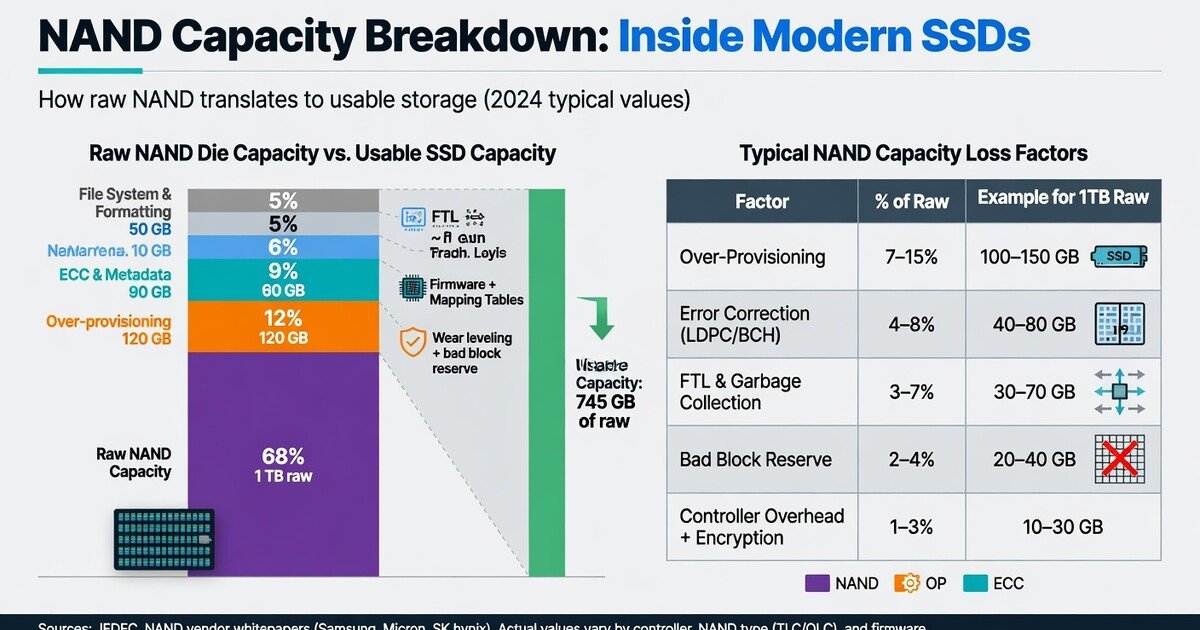
Open your file explorer on a fresh 1TB SSD and you will see something like 931 GB free, not 1000 GB. Part of that gap is just decimal-to-binary math (1TB = 1,000,000,000,000 bytes, while your OS counts in powers of two). But there is another piece hiding behind the scenes: the drive reserves a chunk of NAND exclusively for the SSD controller. That hidden chunk is over-provisioning.
Think of it as the spare tire your drive carries, plus the extra road shoulder that keeps traffic moving smoothly. When flash blocks wear out or the controller needs clean space to shuffle data around, the OP area absorbs the work so your visible capacity stays fast and consistent.
Why 120/240/480GB vs 128/256/512GB
You have probably noticed that some SSDs ship at 120GB, 240GB, or 480GB while others arrive at 128GB, 256GB, or 512GB. The physical NAND inside is often the same total amount. The difference is how much the manufacturer carves out for over-provisioning. The 120/240/480 versions bake in extra OP that the user cannot touch, while the 128/256/512 versions leave less slack for the controller. More aggressive OP models tend to handle sustained writes better — all else being equal.
How Flash Memory Actually Works (and Why Free Space Matters)
To understand why OP matters, you need a quick picture of how NAND flash handles writes. Flash memory is organized into pages (the smallest unit you can write to) and blocks (the smallest unit you can erase). Here is the catch: you cannot overwrite a page directly. You can only write to an empty page. To free up a page, you must erase its entire parent block — and that is a slow operation.
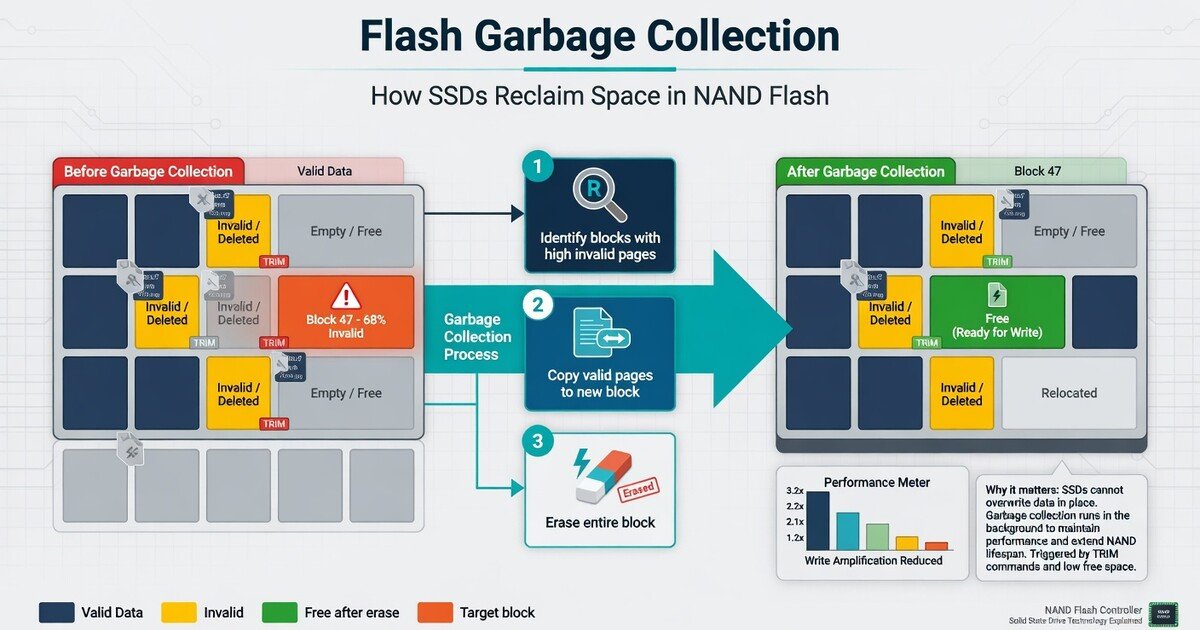
When your SSD has plenty of free blocks — either because you left space unallocated or because the OP area provides a buffer — the controller can always find a clean block to write to immediately. When the drive gets full, the controller has to scramble: find a block with mostly stale pages, copy the few valid pages elsewhere, erase the block, then finally write your new data. That extra work is what makes a nearly-full SSD feel sluggish.
Write Amplification: The Hidden Tax on Your SSD
Every one of those copy-erase-write cycles counts against the drive's finite life. The ratio between what the host computer asked the SSD to write and what the SSD actually wrote internally is called write amplification (WAF). A WAF of 1.0 is ideal: one host write equals one NAND write. A WAF of 3.0 means the drive did three times the internal work for each incoming write.
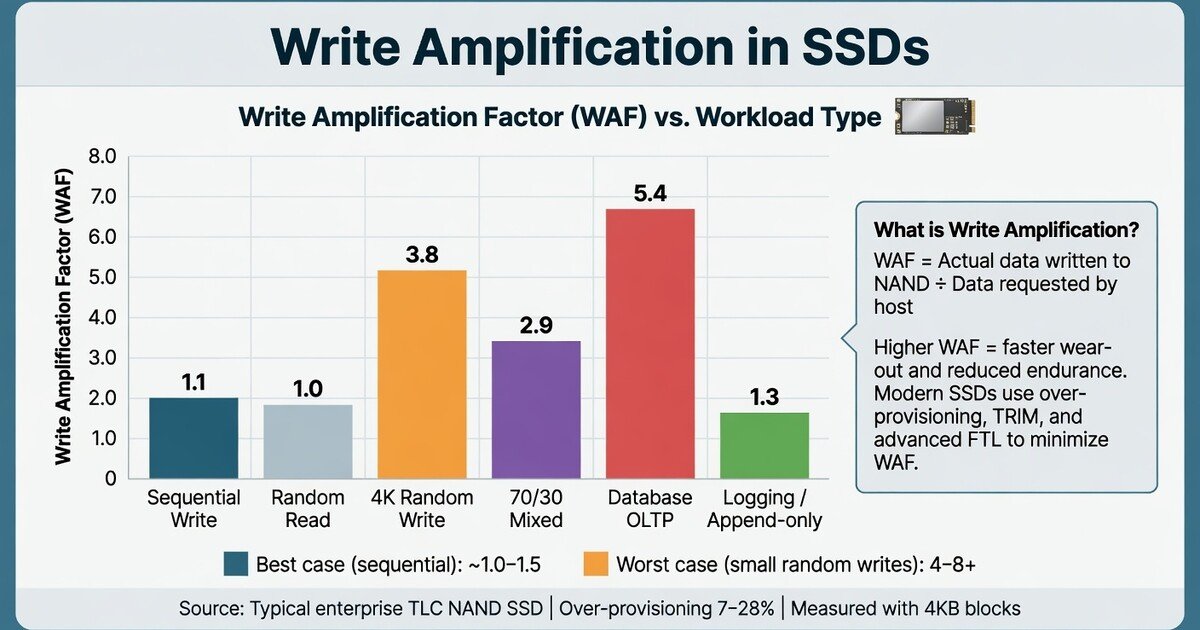
Over-provisioning directly reduces write amplification. IBM research demonstrated this clearly: as OP increases, WAF drops. More reserve blocks mean the garbage collector can work efficiently with less frantic copying. Less frantic copying means fewer internal writes. Fewer internal writes means a drive that lasts longer and stays faster under load.
Over-Provisioning vs Real-World Performance
The effect is not just theoretical. Controlled testing shows a measurable IOPS improvement as OP increases, though the benefit tapers off at very high levels. Here is the pattern from a controlled benchmark environment:
IOPS performance at different over-provisioning levels
Random read and write IOPS (thousands) compared across four over-provisioning levels: 7% (factory default), 12%, 25%, and 50%. The biggest gain happens between 7% and 25% — beyond that the returns shrink quickly.
- At 7% OP (factory default): ~85K random read IOPS, ~55K random write IOPS.
- At 12% OP: ~90K read, ~62K write — a modest but measurable improvement.
- At 25% OP: ~98K read, ~74K write — the largest practical gain for most workloads.
- At 50% OP: ~102K read, ~80K write — diminishing returns, not worth the capacity trade-off.
The key takeaway is not that you should allocate half your drive to OP — that would be wasteful. The useful insight is that the jump from 7% (factory default) to 12–25% delivers a meaningful improvement. Above 25%, the returns shrink quickly. For most users, leaving 10–20% of the drive unallocated hits the sweet spot between extra performance and usable capacity.
What Over-Provisioning Actually Protects Against
Garbage collection efficiency
The garbage collection process we described above becomes dramatically more efficient when the SSD has spare blocks to work with. The controller does not have to pause incoming writes while it desperately tries to free up space. Instead, it can run garbage collection opportunistically in the background, and your foreground workload never feels the stall.
Wear leveling
NAND flash cells can only survive a finite number of program-erase cycles. If the controller kept writing to the same physical cells over and over, those cells would burn out early while others sat unused. Wear leveling spreads writes evenly across all cells. Extra OP gives the leveling algorithm more headroom, distributing wear more effectively over the drive's lifetime.
Bad block replacement
Flash blocks do fail. When one dies, the controller silently swaps in a reserve block from the OP pool. The OS never knows anything happened. Without enough spares, failed blocks start eating into usable capacity, and eventually the drive enters a degraded read-only state.
Sustained write consistency
This is where OP matters most visibly. Consumer SSDs often use a fast SLC write cache to absorb bursts of incoming data. Once that cache fills — and it fills quickly under sustained writes — the drive drops to its native TLC or QLC write speed. Extra OP means the controller has more breathing room to flush the cache, move data around, and stay in its higher-performance zone longer.
How to Configure Over-Provisioning on Modern SSDs
Method 1: Leave unallocated space (works on any drive)
The simplest method requires no software at all. After partitioning your SSD, leave a chunk of raw unallocated space at the end of the drive. 10–20% is a common recommendation. The controller sees that unallocated space and can use it as dynamic OP. This works on every SSD, from every brand, on every operating system.
On Windows, use Disk Management (diskmgmt.msc) to shrink your existing partition. On Linux, you can simply not allocate the full disk when partitioning with fdisk or gparted.
Method 2: Manufacturer utilities
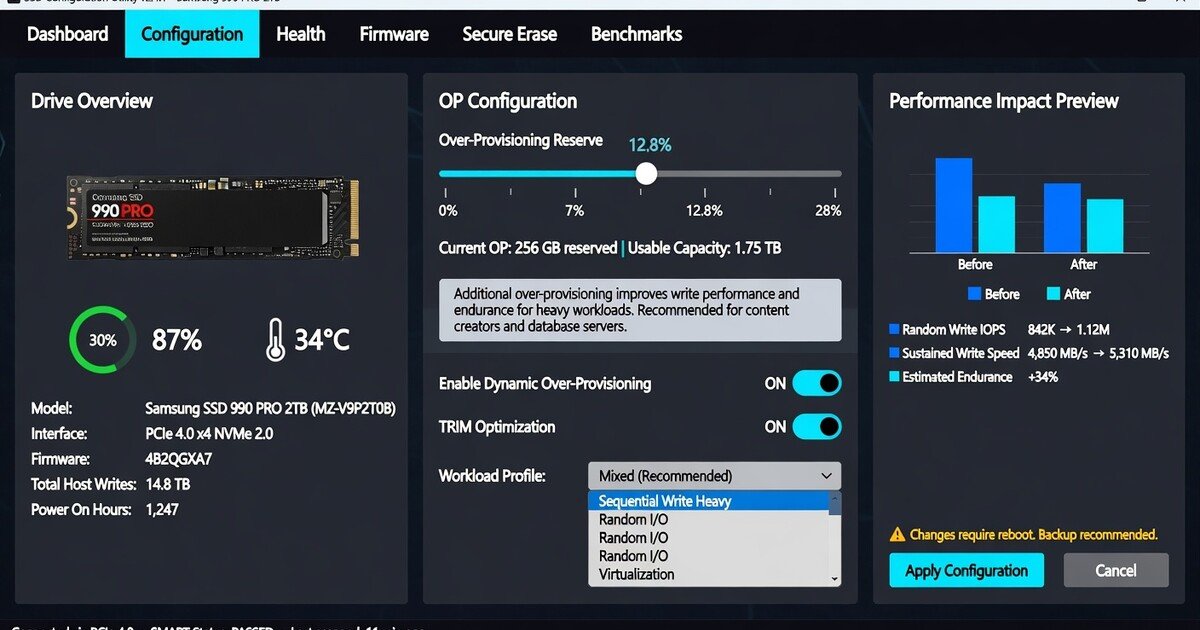
Most major SSD brands offer a utility that can adjust OP with a slider, no repartitioning required:
| Brand | Utility | OP feature |
|---|---|---|
| Samsung | Samsung Magician | Over Provisioning tab — drag a slider to allocate space |
| WD / SanDisk | WD Dashboard | Tools → Over Provisioning |
| Crucial | Crucial Storage Executive | Over Provisioning section |
| Kingston | Kingston SSD Manager | Over Provisioning panel |
| SK Hynix | Drive Manager Easy Kit | Capacity adjustment for OP |
These utilities typically shrink a partition in-place to create the OP headroom, making it safe to adjust even on a drive that already holds data.
Method 3: NVMe command-line (advanced, Linux)
For NVMe SSDs on Linux, nvme-cli can directly control the OP allocation using the nvme id-ctrl and namespace management commands. This is an advanced route typically used in server environments. Most home users are better served by leaving unallocated space or using the manufacturer's GUI tool.
How Much Over-Provisioning Should You Actually Use?
| Use case | Recommended OP | Why |
|---|---|---|
| Light home / office use (web, docs, casual gaming) | Factory default (7%) | Write volume is too low for OP to matter beyond what the drive already ships with |
| Enthusiast gaming / content creation | 10–15% | Helps maintain consistency during game installs, large downloads, and occasional renders |
| Video editing / 3D rendering | 15–20% | Sustained write streams benefit measurably from the extra buffer |
| Database / server workloads | 20–28% | Write amplification becomes a real concern; enterprise drives often ship with 28%+ factory OP |
| Write-heavy enterprise (logging, caching, analytics) | 28%+ (enterprise drives) | These drives are designed with high OP from the factory; do not shrink it |
Over-Provisioning Myths Worth Correcting
"Over-provisioning is the same as TRIM"
It is not. TRIM tells the SSD which deleted files no longer need their pages preserved, so the garbage collector can free those blocks early. Over-provisioning provides the physical spare blocks that the garbage collector needs to do its work. They complement each other — TRIM makes garbage collection smarter, OP makes it possible under load. Both matter.
"More OP always means more speed"
Only up to a point. The performance gain from OP follows a diminishing-returns curve. Going from 7% to 25% helps. Going from 25% to 50% helps much less. Beyond 50%, the curve is nearly flat. At some point you are simply wasting capacity.
"You cannot change OP after the drive has data"
You can. Manufacturer utilities like Samsung Magician can shrink an existing partition in-place to create OP headroom. Leaving unallocated space at the end of the drive also works even if the rest of the drive is full. The controller dynamically adapts.
"OP only matters for write-heavy workloads"
Writes benefit most visibly, but OP also helps read performance indirectly. When the drive is less busy with garbage collection, it has more cycles available for your reads. A tidy drive is a responsive drive.
Setting Up Over-Provisioning: A Quick Checklist
- Leave 10–20% of your SSD unallocated after partitioning
- Use your manufacturer's utility (Samsung Magician, WD Dashboard, etc.) if you want a slider-based approach
- Keep TRIM enabled (it is on by default in modern Windows and Linux)
- Do not fill the visible partition past 80–90% for daily driving
- For database or write-heavy servers, consider enterprise drives with factory OP of 28% or higher
- Re-check OP after migrating data or cloning drives — cloning may fill the unallocated space
FAQ
Yes. Every write that the garbage collector avoids is a write that does not consume a program-erase cycle. Lower write amplification directly translates to longer NAND life. The effect is most noticeable on drives that see heavy sustained writes.
For most users, simply not filling the drive past 80–90% accomplishes the same practical benefit as formal over-provisioning. Free space on the visible partition also gives the controller room to work. Formal OP (unallocated space) is more reliable because the OS cannot accidentally fill it.
No. TRIM is a command the OS sends to announce deleted files. OP is physical reserved capacity. They work together but are fundamentally different mechanisms.
Yes. NVMe drives run faster sequential and random speeds, which can actually make them more sensitive to OP starvation under sustained load. A high-end NVMe drive pushed to its limits benefits from OP just as much as — and sometimes more than — a SATA SSD.
Yes. Shrink your existing partition using Windows Disk Management or your SSD's manufacturer utility, leaving unallocated space at the end of the drive. The controller will automatically use that space as additional OP. No data migration is required.
Performance degrades noticeably. Write speeds can drop by 50% or more as the controller struggles to find clean blocks. The drive works harder, runs hotter, and wears faster. Most SSDs will still function at 100% full, but they will not feel fast.
Not entirely. SLC caching accelerates burst writes by treating a portion of TLC or QLC NAND as fast single-bit cells. But once that cache is exhausted, the drive falls back to native TLC/QLC speed. OP helps the controller clear the cache faster and sustain performance after the cache runs dry. A big cache plus healthy OP is the ideal combination.